Master GTO postflop strategy with the poker solver in your pocket. This tutorial walks you through every feature.
Your progress
0%
Chapter 01
Welcome to Solver+
Solver+ brings GTO poker analysis to your phone. Explore postflop lines for any board, any hole card, across all available spots, powered by a poker solver.
GTO Lookup
Select your game type, spot, and board
Runout Analysis
Walk the game tree from flop to river
Range Splits
Full strategy breakdown for any node
EQ/EV Explorer
Visualize equity and EV distributions
Preflop Multiway Retiring Soon
Moving to GTO Ranges+ for a dedicated preflop experience
Saved Hands
Save and replay hands for study
Shared Hands
Share hands and learn with others
ThinkGTO TV Coming Soon
Educational poker video content, launching soon
Profile & Settings
Manage your membership and preferences
Click any feature above to jump to its tutorial, or use the sidebar to navigate at your own pace.
Poker Positions
Solver+ uses standard 8-handed positions. You'll see these referenced throughout the app:
UTG
Under the Gun, first to act preflop, plays the tightest range.
UTG+1
One seat after UTG. Still an early position with a tight range.
LJ
Lojack, the start of middle position. Ranges begin to widen slightly.
HJ
Hijack, middle position with a moderately wide opening range.
CO
Cutoff, one seat before the Button. A strong late position with wide ranges.
BTN
Button, the best position at the table. Acts last postflop with the widest opening range.
SB
Small Blind, posts the small blind and acts first postflop. A tough, out-of-position seat.
BB
Big Blind, posts the big blind and closes preflop action. Defends a wide range.
Spot Types & Terminology
When selecting spots in Solver+, you'll come across these common terms:
SRP
Single Raised Pot, one player opens with a raise and another calls. The most common postflop scenario.
3-Bet
A re-raise over an initial open-raise. 3-bet pots are larger and ranges are narrower.
vs 3-Bet
Spots where the original raiser faces a 3-bet and calls. Analyses how to play postflop after being 3-bet.
BvB
Blind vs Blind, when action folds to the Small Blind and only the two blinds contest the pot. A unique dynamic with wide ranges on both sides.
Open
The first voluntary raise preflop. An "open" from the CO means the Cutoff was the first player to raise.
Flat
Calling a raise without re-raising. "Flat & 3-bet" spots cover both the calling and re-raising lines against an open.
4-Bet
A raise over a 3-bet. 4-bet pots play with very narrow, premium-heavy ranges and large effective stacks committed.
Limp Check
A player limps in and the Big Blind checks. A limped pot with no preflop raise, common in blind vs blind and passive table dynamics.
Limp Call vs ISO Raise
A player limps, another raises (isolation raise), and the limper calls. Analyses how to play postflop as the limper facing an iso raise.
Chapter 02
GTO Lookup
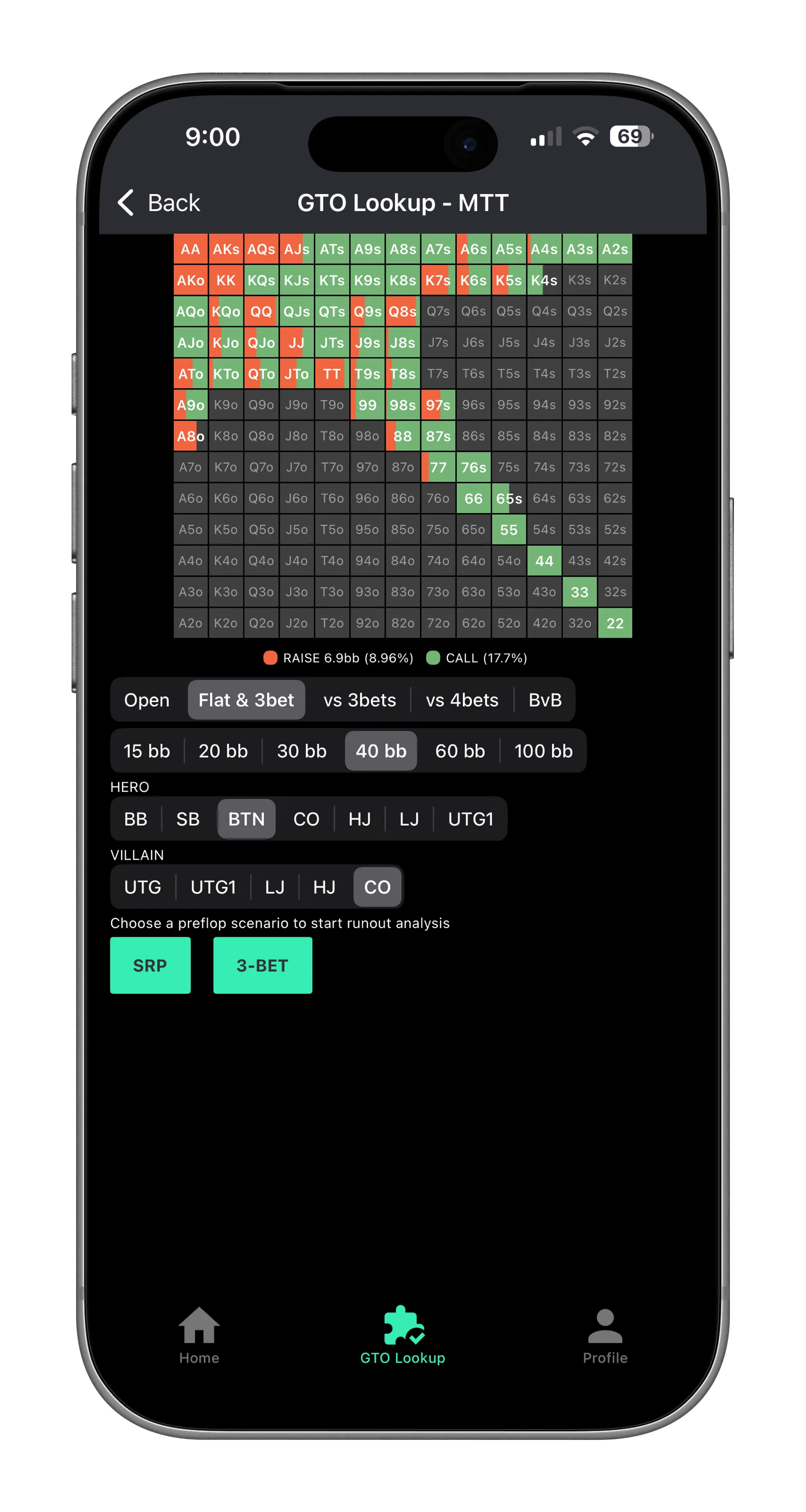
Select your game format, pick a spot and formation, GTO Lookup takes you straight into the Runout Analysis screen.
1
Open GTO Lookup from the Home Screen
Tap the GTO Lookup card on the home screen to get started.
2
Select a Game Type
Choose the format you want to study, Cash: MTT (tournament), Spin: or Heads Up Cash. Each format has its own set of solved spots tailored to that game's stack depths and dynamics.
3
Choose a Spot
Select from the available poker spots. Each spot represents a specific preflop action sequence (e.g., BTN open, BB 3-bet, BvB).
4
Select Your Positions
Pick the positions involved in the hand, the opener and the caller/3-bettor. The available positions update based on the spot you chose.
5
Select a Formation
Choose the preflop formation, SRP: 3-Bet: 4-Bet: Limp Check: Limp Call vs ISO Raise: and more. This takes you straight into the Runout Analysis screen.
After selecting a formation, you'll land on the Runout Analysis screen, covered in the next chapter.
Chapter 03
Runout Analysis
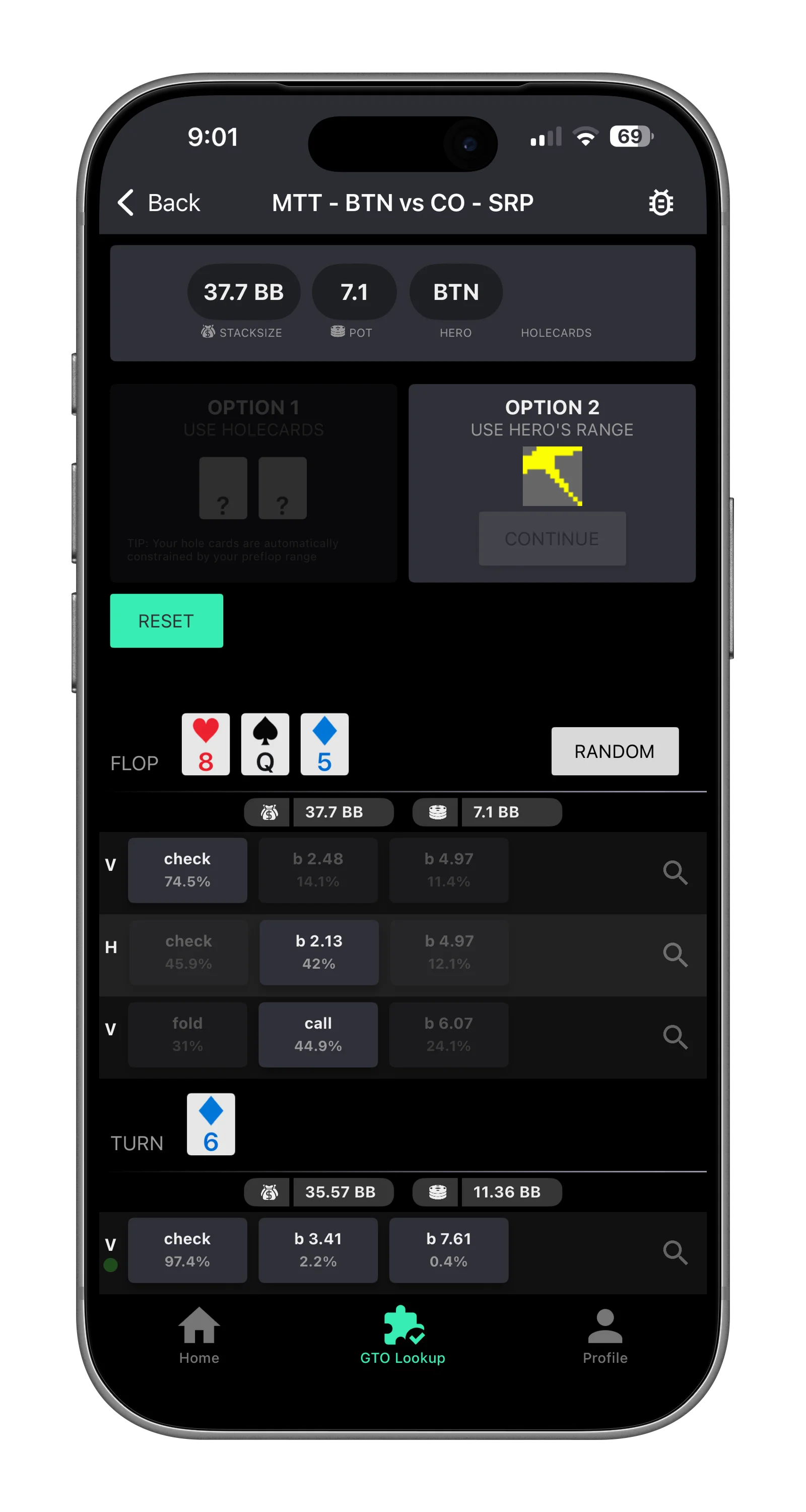
The solver screen, choose your hero, set the flop, and navigate through the full GTO solution street by street.
Getting Started
1
Choose Your Hero
Enter specific hole cards to see GTO frequencies and EVs for that exact hand, or continue with the hero's full range to see how every hand in the range plays across the runout.
2
Set the Flop
Enter the three flop cards. The app will immediately show you the GTO actions for the out-of-position (OOP) player first.
Navigating the Runout
The runout unfolds street by street, alternating between the two players:
1
OOP Acts First
The app shows GTO actions and frequencies for the out-of-position player, check, bet with various sizings, or fold.
2
IP Responds
Based on the OOP action, the in-position player's bet sizing options appear. Select an action to continue down the game tree.
3
Continue Until the Street Ends
Actions alternate between OOP and IP until you reach the end of the street (a leaf node).
4
Enter the Turn Card
Once you reach the flop leaf node, enter a turn card and repeat, OOP acts, IP responds, all the way to the end of the turn.
5
Enter the River Card
At the turn leaf node, enter any river card and walk through the final street the same way.
Changing Lines
You can scroll up and down to see the full runout at any time. Want to explore a different line? Simply tap an action at any previous node to restart from that point:
Change a Street Card
Want a different turn or river? Tap the leaf node of the previous street and enter a new card to restart from there.
Explore a Different Action
Instead of checking the flop as OOP, tap a betting option instead, the runout continues from that new line. Quick, easy, and fully flexible.
Dive Deeper with Range Splits
Tap the magnifying glass icon at any node to open the Range Splits screen for a full strategy breakdown at that point. Covered in the next chapter.
Chapter 04
Range Splits
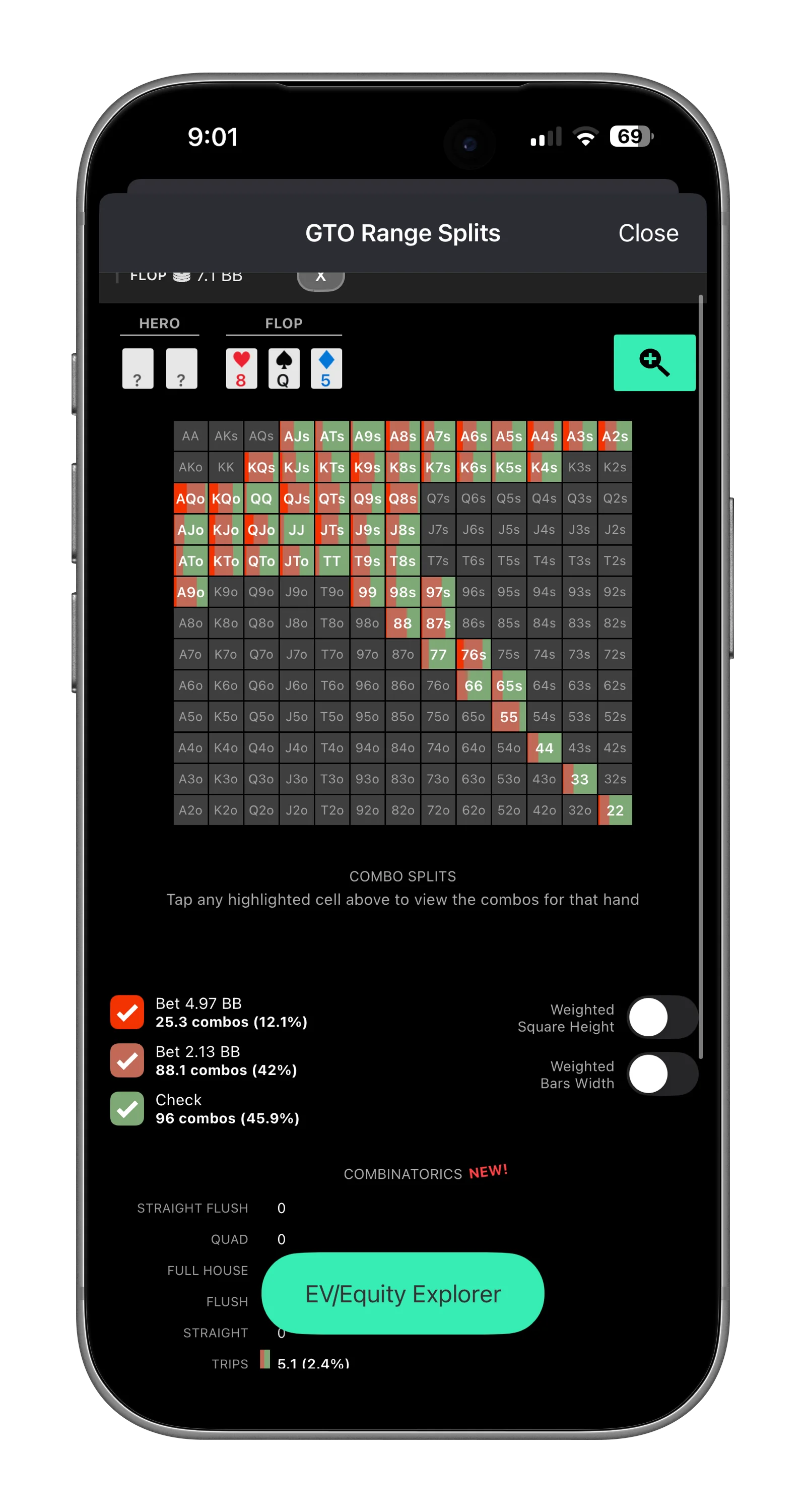
The full strategy view for an entire range at any node, see how every hand plays from both OOP and IP perspectives.
Getting Here
1
Tap the Magnifying Glass
From any node in the Runout Analysis screen, tap the magnifying glass icon to open Range Splits for that specific decision point.
Exploring the Strategy
1
View the Full Range Strategy
The Range Splits screen shows the complete GTO strategy for the entire range at the selected node, every hand, every action, with frequencies.
2
Tap a Hand Combo
Tap any individual hand in the range grid to see its specific combo splits, exactly how that hand is divided across each action.
3
Highlight by Action
Tap a bet sizing option to highlight only the hands that take that action. Instantly see which part of the range goes into each betting line.
4
Check Combinatorics
View exact combo counts for each hand type at this node. Tap any combo count to filter the range grid and isolate that subset of hands.
5
Weighted Height & Weighted Width
Toggle Weighted Height to scale each combo's height by the frequency with which it arrives at this node, taller means it reaches this spot more often. Toggle Weighted Width to include or exclude combos from each range cell based on whether they're still in the range at this point.
6
Switch Perspectives
View the strategy from either the OOP or IP player's perspective to understand both sides of the spot.
To get familiar with the weighted toggles, try picking a single combo like AA and walking through different postflop lines, watch how its height and presence in the grid changes as the range narrows through the runout.
Want to go even deeper? From the Range Splits screen, you can open the EQ/EV Explorer for detailed equity and expected value analysis, covered in the next chapter.
Chapter 05
EQ/EV Explorer
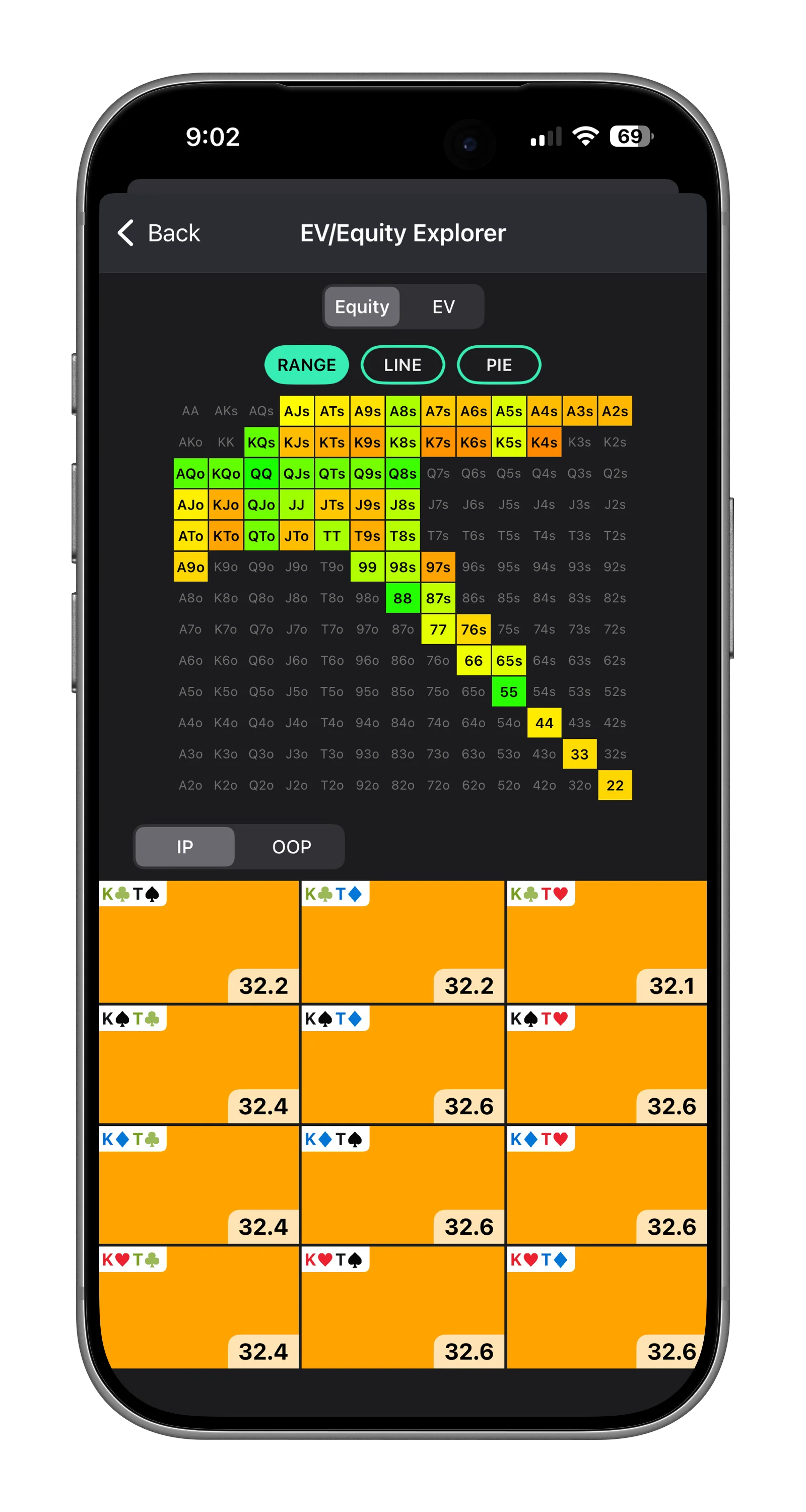
Dive deep into equity and expected value analysis, accessible from the Range Splits screen for any node.
1
Access EQ/EV Explorer
From the Range Splits screen, tap into the EQ/EV Explorer for detailed equity and expected value breakdowns at the current node.
2
Choose a Chart Type
Switch between multiple visualization modes to study the data from different angles.
3
Tap Individual Combos
Highlight any combo to see its exact equity, EV, and action breakdown.
Line Chart
EV distribution across the range
Pie Chart
Action frequency proportions
Range Chart
13x13 grid with color-coded actions
Chapter 06
Preflop Multiway Retiring Soon
View complete GTO preflop opening and defending ranges for multiway scenarios.
Preflop is moving to GTO Ranges+
We're sharpening the focus of each app to give you the best experience. Solver+ is dedicated to postflop analysis, game trees, runouts, EQ/EV, and everything after the flop. For preflop, GTO Ranges+ is purpose-built with a huge library of solved multiway preflop ranges, more spots, and deeper preflop-specific tools. The Preflop Multiway feature in Solver+ will be retiring soon, but you'll find everything it offers, and much more, in GTO Ranges+.
1
Open Preflop Multiway
Tap the Preflop Multiway card on the home screen.
2
Select a Position
Choose the seat to study, from UTG (tightest) through to BB (widest defending range).
3
View the Ranges
The range chart displays all hands color-coded by action, open-raise, call, 3-bet, or fold, with their GTO frequencies.
4
Analyze Range Splits
See how the opening range changes in multiway scenarios and how ranges adjust with more players in the pot.
Looking for more preflop content? GTO Ranges+ has an extensive collection of solved preflop ranges across all positions and scenarios.
Chapter 07
Saved Hands
Save interesting hands as you study and come back to review and replay them anytime.
1
Save a Hand
While in the Runout Analysis screen, tap the save button to bookmark the hand for later.
2
Browse Saved Hands
Open Saved Hands from the home screen to see all bookmarked hands, shown with position, board, and action details.
3
Replay a Hand
Tap any saved hand to jump back into full analysis, walk the game tree, check EQ/EV, and review range splits.
4
Delete Hands
Swipe left on any saved hand to remove it from your collection.
Saved hands are stored locally on your device. Clearing the app's cache from Settings will remove them.
Chapter 08
Shared Hands
Collaborate with the Solver+ community, share hands for discussion and learn from others.
1
Share a Hand
From any hand analysis, tap the share button to publish the hand for other Solver+ users to see.
2
Browse Shared Hands
Open the Shared Hands section to see hands shared by the community.
3
Analyze Together
Tap any shared hand to load it into the full analysis view, walk the game tree and compare your thinking with GTO.
Sharing hands is a great way to discuss tricky spots with study partners. Build your poker study group!
Chapter 09
ThinkGTO TV Coming Soon
Video-based GTO learning, right inside the app.
We're building something great
ThinkGTO TV will be home to educational poker content, strategy breakdowns, hand reviews, GTO walkthroughs, and more. Our YouTube channel is currently being rebuilt from the ground up to bring you high-quality, focused content. Once it's ready, ThinkGTO TV will stream it directly into the app so you can study and watch in one place.
What to expect
GTO Strategy Sessions
Deep dives into postflop game trees, range splits, combinatorics, and EV analysis, taught step by step.
Hand Reviews
Real hands broken down with the solver, showing how GTO strategy applies in practice.
Live & On-Demand
Catch scheduled live streams or watch recordings at your own pace, all accessible from the ThinkGTO TV tab.
Stay tuned, we'll announce the launch inside the app. In the meantime, keep sharpening your game with GTO Lookup and Runout Analysis.
Chapter 10
Profile & Settings
Manage your membership, preferences, and app configuration.
Profile
Membership Status
View your current subscription tier, Free, Monthly, Annual, or Promotional. Upgrade anytime to unlock all features.
Refer Friends
Share Solver+ with friends and help grow the community of GTO students.
Feedback & Support
Report issues, suggest features, or get in touch with the development team.
Settings
Clear Cache
Free up device storage by clearing cached solver data. Note: this will also remove locally saved hands.
Refer Friend Reminder
Toggle the periodic reminder to share Solver+ with your poker friends.
Clearing the cache removes all locally stored data, including saved hands. Make sure to share any important hands first.
Chapter 11
Frequently Asked Questions
Quick answers to common questions about using Solver+.
GTO stands for Game Theory Optimal. It's a mathematically balanced poker strategy that cannot be exploited. By playing GTO, you ensure no opponent can gain an edge over you in the long run, regardless of their strategy.
Solver+ covers a wide range of preflop action sequences across all 8 standard positions (UTG, UTG+1, LJ, HJ, CO, BTN, SB, BB). Available spots include single-raised pots, 3-bet pots, and various multiway configurations. The full list is shown when you open GTO Lookup.
The free tier gives you limited access to explore the app's features. A Premium subscription (monthly or annual) unlocks all GTO spots, full runout analysis, the EQ/EV Explorer, saved and shared hands, and all future content updates. We also offer a Lifetime option, a one-time purchase that gives you permanent access to everything, no recurring payments.
Yes! Solver+ offers introductory trial periods so you can experience the full set of premium features before committing to a subscription. Look for trial offers on the home screen or in your profile.
Absolutely. Solver+ is part of the ThinkGTO poker app suite, which also includes PreFlop+, PostFlop+, and GTO Ranges+. Join our Discord to connect with other players and discover companion apps.
While in the Runout Analysis screen, use the save button to bookmark the hand locally, or the share button to publish it to the Solver+ community. Saved hands appear in your Saved Hands section; shared hands appear for all users.
If you received a promotional unlock code, redeem it from the upgrade screen. The code will activate your premium features for the specified duration.